Oracle Clound 建立免費 VM 加上建立 RSS 伺服器
基礎建立
原本按照網路上教學創了一個帳號來建立 VM,免費 VM 能用的只有 ARM 的 VM.Standard.A1.Flex 以及 x86 的 VM.Standard.E2.1.Micro,然後我選的地區是 Singapore。
好笑的是,Oracle Cloud 建立的時候,你沒有附上信用卡的話,就是免費帳號,這時我每天嘗試建立免費 VM 都說額滿了,直到我新增信用卡,這是後創建馬上就可以了,看來他們不想給免費的人用。
並且建立信用卡他會馬上扣款台幣三千,應該只是確認裡面有錢,只是跳出訊息,沒有真的扣款。
建立 VM 的時候記得下載 Private Key of the SSH 之後才能連線,我選擇安裝 Ubunut 24 minimum with A1.Flex 機器。
另外一個是網路問題,在創建的時候我是使用新建一個 VCN,沒有公用 IP,只有專用 IPv4,專用 IP 就是 Oracle 內部網路使用(VM 跟 VM 溝通會用到),你要 Public IP 就是要去設定裡面新增臨時的公用 IP。
Oracle Cloud 創建 VM,進階
VCN (虛擬網路,有 Gateway)
 └── Subnet (子網路)
      └── VM Instance
           └── VNIC
                └── Private IP
                └── Public IP (可選)
架構如上,但我直接在創建 VM 的時候讓他自己創建 VCN,因為自己創建還要自己設定 Gateway/Routing Table,我這邊直接創建,但缺點就是不能同時創建 Subnet 的同時設定 Public IP。
所以在創建 VM 之後自己手動點進去網路設定公用 IP 如下:
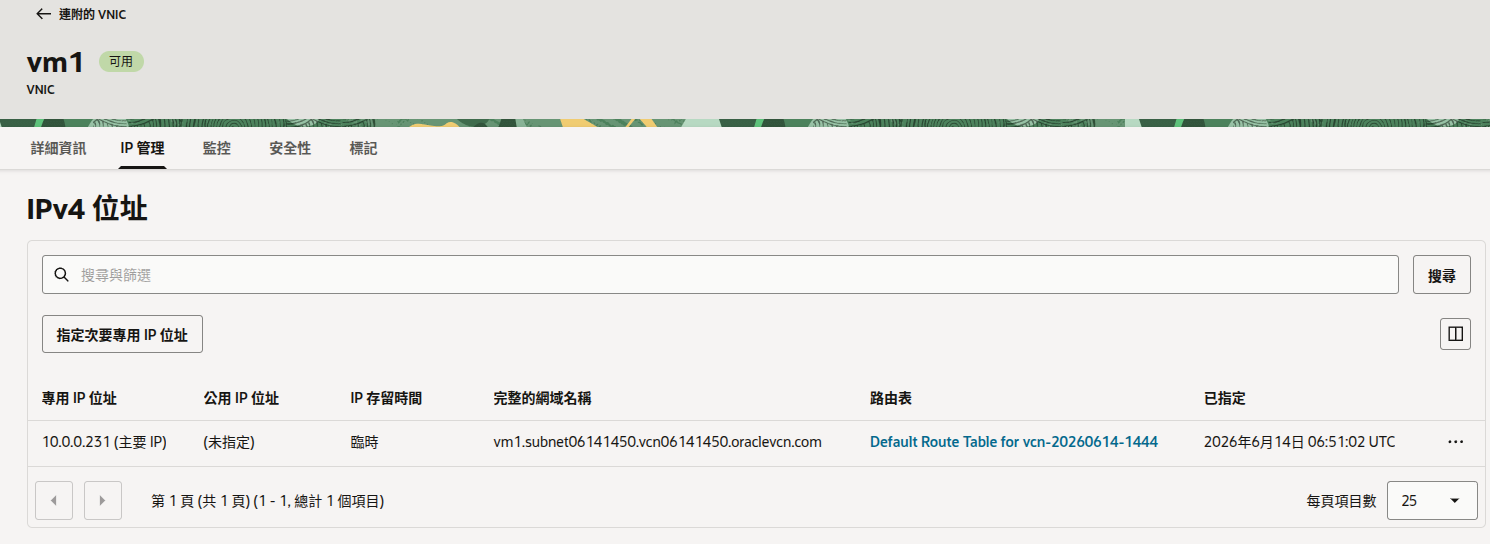
點進去 VNIC 裡面設定 Public IP。
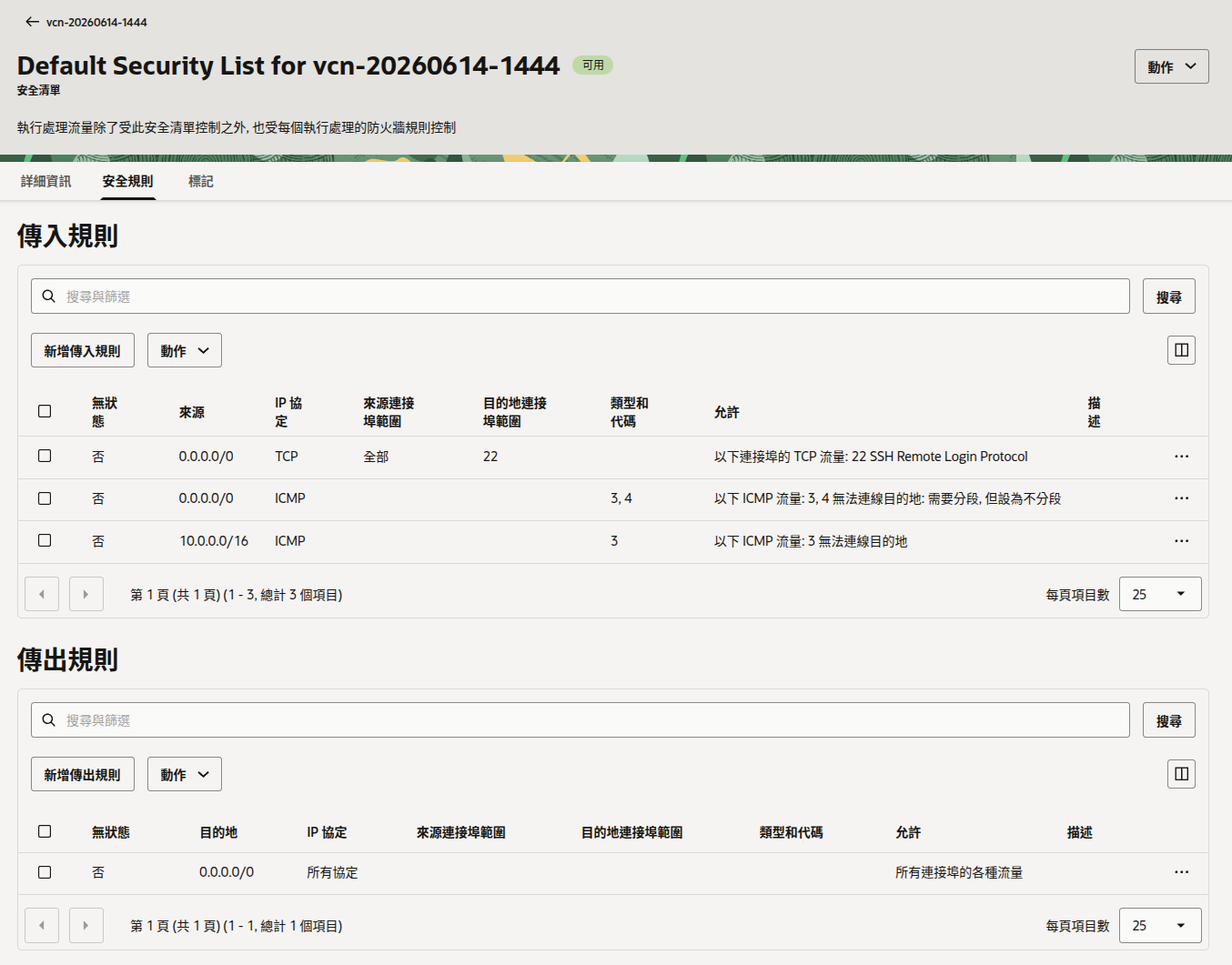
VCN 自己有預設安全規則:
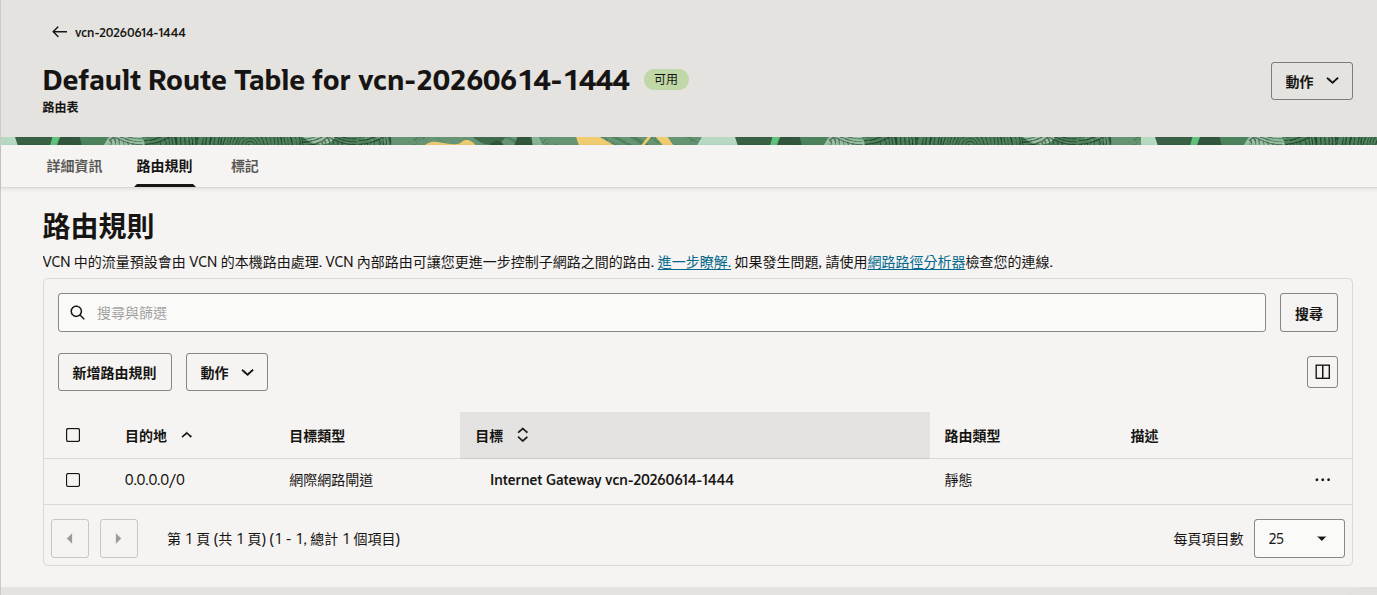
Default Route Table:
SSH 進去之後可以先看一下裡面的 Routing Table 跟安裝一些東西。
ubuntu@vm1:~$ ip route
default via 10.0.0.1 dev enp0s6 proto dhcp src 10.0.0.231 metric 100
10.0.0.0/24 dev enp0s6 proto kernel scope link src 10.0.0.231 metric 100
10.0.0.1 dev enp0s6 proto dhcp scope link src 10.0.0.231 metric 100
169.254.0.0/16 dev enp0s6 proto dhcp scope link src 10.0.0.231 metric 100
169.254.169.254 dev enp0s6 proto dhcp scope link src 10.0.0.231 metric 100
代表預設都丟給 10.0.0.1 default gateway,然後 10.0.0.x 的 VM 互通,不用出網,169 的話是 for Instance Metadata Service (IMDS),取得 OCI metadata。
ubuntu@vm1:~$ resolvectl status
Global
         Protocols: -LLMNR -mDNS -DNSOverTLS DNSSEC=no/unsupported
  resolv.conf mode: stub

Link 2 (enp0s6)
    Current Scopes: DNS
         Protocols: +DefaultRoute -LLMNR -mDNS -DNSOverTLS DNSSEC=no/unsupported
Current DNS Server: 169.254.169.254
       DNS Servers: 169.254.169.254
        DNS Domain: vcn06141450.oraclevcn.com
這是 Oracle 的 內建 DNS service。
ubuntu@vm1:~$ sudo iptables -S | nl -ba
     1 -P INPUT ACCEPT
     2 -P FORWARD ACCEPT
     3 -P OUTPUT ACCEPT
     4 -N InstanceServices
     5 -A INPUT -m state --state RELATED,ESTABLISHED -j ACCEPT
     6 -A INPUT -p icmp -j ACCEPT
     7 -A INPUT -i lo -j ACCEPT
     8 -A INPUT -p tcp -m state --state NEW -m tcp --dport 22 -j ACCEPT
     9 -A INPUT -j REJECT --reject-with icmp-host-prohibited
    10 -A FORWARD -j REJECT --reject-with icmp-host-prohibited
    11 -A OUTPUT -d 169.254.0.0/16 -j InstanceServices
    12 -A InstanceServices -d 169.254.0.2/32 -p tcp -m owner --uid-owner 0 -m tcp --dport 3260 -m comment --comment "See the Oracle-Provided Images section in the Oracle Cloud Infrastructure documentation for security impact of modifying or removing this rule" -j ACCEPT
    13 -A InstanceServices -d 169.254.2.0/24 -p tcp -m owner --uid-owner 0 -m tcp --dport 3260 -m comment --comment "See the Oracle-Provided Images section in the Oracle Cloud Infrastructure documentation for security impact of modifying or removing this rule" -j ACCEPT
    14 -A InstanceServices -d 169.254.4.0/24 -p tcp -m owner --uid-owner 0 -m tcp --dport 3260 -m comment --comment "See the Oracle-Provided Images section in the Oracle Cloud Infrastructure documentation for security impact of modifying or removing this rule" -j ACCEPT
    15 -A InstanceServices -d 169.254.5.0/24 -p tcp -m owner --uid-owner 0 -m tcp --dport 3260 -m comment --comment "See the Oracle-Provided Images section in the Oracle Cloud Infrastructure documentation for security impact of modifying or removing this rule" -j ACCEPT
    16 -A InstanceServices -d 169.254.0.2/32 -p tcp -m tcp --dport 80 -m comment --comment "See the Oracle-Provided Images section in the Oracle Cloud Infrastructure documentation for security impact of modifying or removing this rule" -j ACCEPT
    17 -A InstanceServices -d 169.254.169.254/32 -p udp -m udp --dport 53 -m comment --comment "See the Oracle-Provided Images section in the Oracle Cloud Infrastructure documentation for security impact of modifying or removing this rule" -j ACCEPT
    18 -A InstanceServices -d 169.254.169.254/32 -p tcp -m tcp --dport 53 -m comment --comment "See the Oracle-Provided Images section in the Oracle Cloud Infrastructure documentation for security impact of modifying or removing this rule" -j ACCEPT
    19 -A InstanceServices -d 169.254.0.3/32 -p tcp -m owner --uid-owner 0 -m tcp --dport 80 -m comment --comment "See the Oracle-Provided Images section in the Oracle Cloud Infrastructure documentation for security impact of modifying or removing this rule" -j ACCEPT
    20 -A InstanceServices -d 169.254.0.4/32 -p tcp -m tcp --dport 80 -m comment --comment "See the Oracle-Provided Images section in the Oracle Cloud Infrastructure documentation for security impact of modifying or removing this rule" -j ACCEPT
    21 -A InstanceServices -d 169.254.169.254/32 -p tcp -m tcp --dport 80 -m comment --comment "See the Oracle-Provided Images section in the Oracle Cloud Infrastructure documentation for security impact of modifying or removing this rule" -j ACCEPT
    22 -A InstanceServices -d 169.254.169.254/32 -p udp -m udp --dport 67 -m comment --comment "See the Oracle-Provided Images section in the Oracle Cloud Infrastructure documentation for security impact of modifying or removing this rule" -j ACCEPT
    23 -A InstanceServices -d 169.254.169.254/32 -p udp -m udp --dport 69 -m comment --comment "See the Oracle-Provided Images section in the Oracle Cloud Infrastructure documentation for security impact of modifying or removing this rule" -j ACCEPT
    24 -A InstanceServices -d 169.254.169.254/32 -p udp -m udp --dport 123 -m comment --comment "See the Oracle-Provided Images section in the Oracle Cloud Infrastructure documentation for security impact of modifying or removing this rule" -j ACCEPT
    25 -A InstanceServices -d 169.254.0.0/16 -p tcp -m tcp -m comment --comment "See the Oracle-Provided Images section in the Oracle Cloud Infrastructure documentation for security impact of modifying or removing this rule" -j REJECT --reject-with tcp-reset
    26 -A InstanceServices -d 169.254.0.0/16 -p udp -m udp -m comment --comment "See the Oracle-Provided Images section in the Oracle Cloud Infrastructure documentation for security impact of modifying or removing this rule" -j REJECT --reject-with icmp-port-unreachable
iptable 預設也有東西,基本上是:
INPUT  = whitelist (SSH only)
OUTPUT = allow all
Oracle metadata = allowed
在 VM 建立 RSS Server
先確定能網路能跑到 80/443 port of VM,所以我們先去設定 iptable。
ubuntu@vm1:~$ sudo iptables -L INPUT -n --line-numbers
Chain INPUT (policy ACCEPT)
num  target     prot opt source               destination
1    ACCEPT     0    --  0.0.0.0/0            0.0.0.0/0            state RELATED,ESTABLISHED
2    ACCEPT     1    --  0.0.0.0/0            0.0.0.0/0
3    ACCEPT     0    --  0.0.0.0/0            0.0.0.0/0
4    ACCEPT     6    --  0.0.0.0/0            0.0.0.0/0            state NEW tcp dpt:22
5    REJECT     0    --  0.0.0.0/0            0.0.0.0/0            reject-with icmp-host-prohibited
ubuntu@vm1:~$ sudo iptables -I INPUT 5 -p tcp --dport 80 -j ACCEPT
ubuntu@vm1:~$ sudo iptables -I INPUT 6 -p tcp --dport 443 -j ACCEPT

ubuntu@vm1:~$ sudo apt-get install iptables-persistent
Reading package lists... Done
Building dependency tree... Done
Reading state information... Done
iptables-persistent is already the newest version (1.0.20).
0 upgraded, 0 newly installed, 0 to remove and 9 not upgraded.

ubuntu@vm1:~$ sudo netfilter-persistent save
run-parts: executing /usr/share/netfilter-persistent/plugins.d/15-ip4tables save
run-parts: executing /usr/share/netfilter-persistent/plugins.d/25-ip6tables save
ubuntu@vm1:~$ sudo netfilter-persistent reload
run-parts: executing /usr/share/netfilter-persistent/plugins.d/15-ip4tables start
run-parts: executing /usr/share/netfilter-persistent/plugins.d/25-ip6tables start
然後要在 Oracle Clound 幫 VM 新增安全群組(不要用安全清單,因為安全清單是應用在整個子網路)。
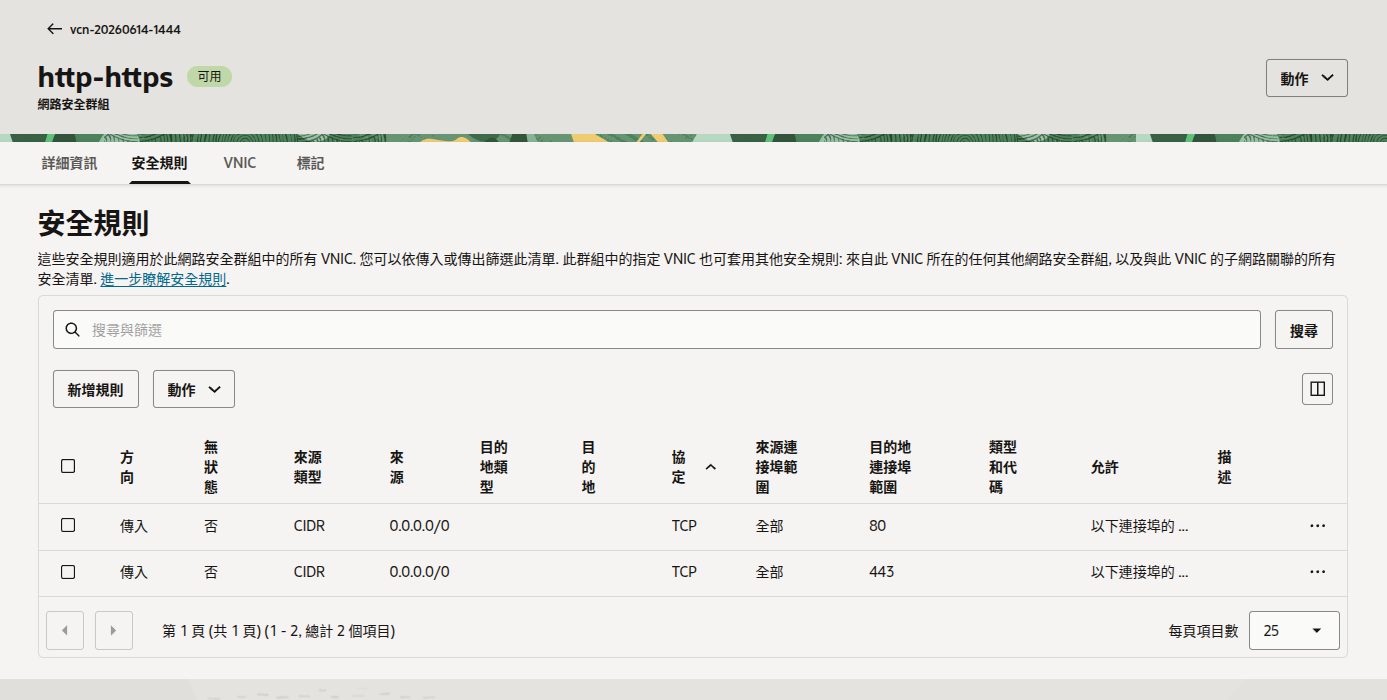
這樣就成功了:
ubuntu@vm1:~$ sudo python3 -m http.server 80
Serving HTTP on 0.0.0.0 port 80 (http://0.0.0.0:80/) ...
140.115.59.22 - - [14/Jun/2026 07:52:09] "HEAD / HTTP/1.1" 200 -
^C
Keyboard interrupt received, exiting.
發現在另外一台機器也要 Private key 連線,假如想要新增一個金鑰好像 Console 介面也沒辦法新增,只能先進去 SSH 再來手動新增 key。SSH key 使用的時候還要確認用 chmod 600。
SSH 保護
直接安裝 fail2ban。
sudo apt update
sudo apt install -y fail2ban
開始安裝套件
我們先安裝 Docker,直接用舊版的就好,先不用太新的:
sudo apt update
sudo apt upgrade -y
sudo apt install -y docker.io
sudo systemctl enable docker
sudo systemctl start docker
docker --version # 目前是 29.1.3
sudo docker run hello-world # 測試,應該要有 Hello 訊息

sudo usermod -aG docker $USER
newgrp docker

# 開始跑 FreshRSS, 開放 8080 對應到 VM 裡面的 80 port
docker run -d --name freshrss -p 8080:80 freshrss/freshrss

sudo apt update && sudo apt install net-tools iputils-ping -y

# Debug
sudo systemctl status caddy --no-pager
sudo tcpdump -ni any tcp port 80
sudo ss -tlnp | grep -E ':80|:443'
最後用 Caddy + freshrss 來建立網站,並且用自己的 rss.kola.ink domain 在 cloudflare dns 添加,注意一開始要 proxy only,才能讓 Caddy 一開始會自動連到 80 port 來拿 Let’s 憑證,之後才可以開啟 Proxy。